Water Spilled on Laptop? What You Must Do Immediately
Accidents happen fast—one moment you’re working, and the next, a glass of water is all over your laptop. If you’re searching “water spilled on laptop what to do”, you need clear, immediate steps to reduce damage and protect your data. Acting quickly can make the difference between a simple fix and a costly repair.
This guide explains exactly what to do right after a spill, what mistakes to avoid, and when to seek professional help from Dr Mobile.
Why Quick Action Matters After Water Spills
Water and electronics don’t mix. When liquid enters your laptop, it can cause:
- Short circuits that damage internal components instantly
- Corrosion that worsens over time
- Keyboard failure after liquid exposure
- Data loss if storage components are affected
Even if your laptop seems fine at first, hidden damage can appear later. That’s why following the right steps immediately is critical.
Immediate Emergency Steps (Do This Right Away)
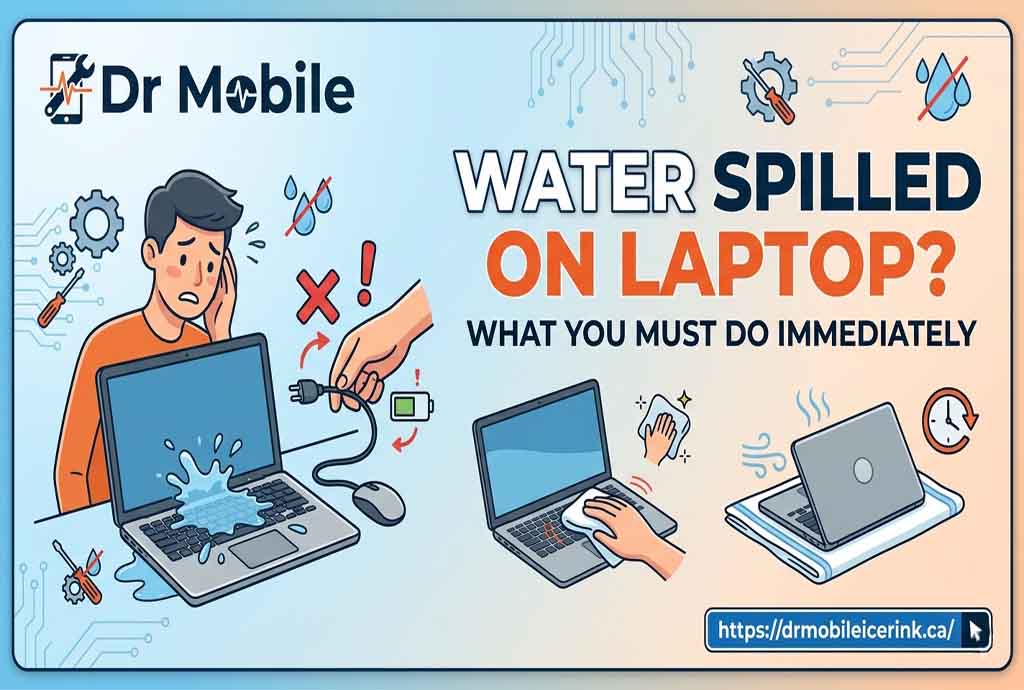
If you’ve just spilled water on your laptop, follow this step-by-step emergency response checklist:
1. Turn Off the Laptop Immediately
- Press and hold the power button until it shuts down
- Do NOT try to save files or continue working
2. Disconnect All Power Sources
- Unplug the charger
- Remove external devices (USB drives, mouse, etc.)
3. Remove the Battery (If Possible)
- If your laptop has a removable battery, take it out
- This stops electrical flow and reduces damage
4. Dry the Exterior Quickly
- Use a clean, dry cloth or paper towel
- Focus on the keyboard, ports, and screen edges
5. Flip the Laptop Upside Down
- Place it in a “tent” or inverted V shape
- This helps drain liquid away from internal components
6. Let It Air Dry
- Leave it in a dry, well-ventilated area
- Avoid rushing the drying process
Quick Checklist for Featured Snippets
Water spilled on laptop what to do:
- Turn it off immediately
- Unplug and remove battery
- Wipe off visible liquid
- Flip it upside down
- Let it dry for at least 24–48 hours
- Avoid turning it back on too soon
What Happens Inside a Wet Laptop?
Understanding the damage helps you act smarter.
Short Circuits
When water touches powered components, it creates unintended electrical paths, causing instant failure.
Corrosion Over Time
Even after drying, moisture residue can slowly damage:
- Motherboard circuits
- Connectors
- Internal chips
Keyboard and Trackpad Damage
Spilled water on laptop keyboard can lead to:
- Sticky keys
- Non-responsive buttons
- Permanent input failure
Hard Drive or SSD Risks
Water exposure can result in:
- File corruption
- Data loss
- Boot failure
How to Dry a Wet Laptop Safely
Drying your laptop properly is one of the most important steps.
Recommended Drying Methods
- Place the laptop in a well-ventilated area
- Use a fan to improve airflow
- Leave it untouched for 24–48 hours minimum
Optional Techniques
- Silica gel packets (help absorb moisture)
- Dry environment (low humidity room)
What NOT to Do (Common Mistakes)
Many users make critical errors after a spill. Avoid these:
❌ Turning the Laptop Back On Too Soon
- This can cause permanent short circuits
❌ Using a Hairdryer
- Heat can damage internal components
- It may push water deeper inside
❌ Shaking the Laptop
- Spreads water to unaffected areas
❌ Placing It in Rice
- Rice is not effective for laptops
- Dust and particles can enter ports
❌ Ignoring the Problem
- Even small spills can lead to long-term damage
Laptop Water Damage Fix: When DIY Isn’t Enough
Sometimes, drying alone won’t fix the issue.
Signs You Need Professional Help
- Laptop won’t turn on
- Screen flickering or black
- Keyboard not working
- Strange noises or overheating
- Random shutdowns
At this stage, a proper laptop liquid damage repair is necessary.
Professional Repair: What Experts Do
Technicians at Dr Mobile follow advanced processes:
Internal Cleaning
- Disassemble the laptop
- Clean components with specialized solutions
Component Testing
- Check motherboard, RAM, storage
- Identify damaged parts
Corrosion Removal
- Prevent long-term damage
Replacement of Faulty Parts
- Keyboard
- Battery
- Internal circuits
Data Recovery After Water Damage
One of the biggest concerns is losing important files.
Can Data Be Saved?
In many cases, yes. Even if the laptop doesn’t turn on:
- Storage drives can often be recovered
- Files may still be intact
Data Recovery Services Include:
- Extracting files from damaged drives
- Repairing corrupted storage systems
- Securing important documents
Professional Data Recovery services from Dr Mobile can help retrieve critical data safely.
Spilled Water on Laptop Keyboard: What to Expect
The keyboard is usually the first part affected.
Common Issues:
- Keys stop working
- Sticky or delayed response
- Random typing
Possible Solutions:
- Cleaning or replacing the keyboard
- Internal inspection for deeper damage
How Long Should You Wait Before Turning It On?
Patience is key.
Recommended Waiting Time:
- Minimum: 24 hours
- Ideal: 48 hours or more
Even if it looks dry, internal moisture may still be present.
Preventive Tips to Avoid Future Spills
Prevention is always better than repair.
Smart Habits:
- Keep drinks away from your laptop
- Use spill-proof bottles
- Avoid working near liquids
Protective Accessories:
- Keyboard covers
- Laptop skins
- Waterproof sleeves
Workspace Setup:
- Use a stable desk
- Keep liquids on a separate surface
Dr Mobile Services for Water-Damaged Laptops
When damage goes beyond basic drying, professional help becomes necessary. Dr Mobile provides:
Laptop Repair
- Fixing hardware and software issues
- Diagnosing hidden damage
Water Damage Repair
- Deep internal cleaning
- Corrosion treatment
Data Recovery
- Retrieving files from damaged systems
- Safe and secure recovery methods
These services are designed to restore functionality and protect your data without unnecessary risks.
Conclusion
If you’re dealing with “water spilled on laptop what to do”, the key is to act fast and avoid common mistakes. Turning off the device, drying it properly, and knowing when to seek help can significantly improve your chances of saving both your laptop and your data.
While some minor spills can be handled at home, deeper issues often require expert attention. Understanding the risks and taking the right steps ensures your device has the best chance of recovery.
FAQs
1. What should I do immediately after water spills on my laptop?
Turn it off, unplug it, remove the battery if possible, dry the exterior, and let it air dry for at least 24–48 hours.
2. Can a laptop survive water damage?
Yes, if you act quickly and avoid turning it on, many laptops can be repaired successfully.
3. Is it safe to use a hairdryer to dry a laptop?
No. Heat can damage components and push moisture deeper inside.
4. How much time does it take to fix laptop water damage?
It depends on the severity. Minor cases may take a day, while severe damage may require several days.
5. Will my data be lost after water damage?
Not always. In many cases, data recovery is possible even if the laptop doesn’t turn on.