iPhone Not Charging Properly? Here’s What You Should Do
Experiencing iPhone charging issues can be frustrating, especially when your device is essential for work, study, or staying in touch with family. A phone that refuses to charge disrupts your daily routine and can cause unnecessary stress. Whether your iPhone shows a slow charging speed, fails to charge at all, or displays inconsistent battery levels, understanding the cause and knowing the right solution can save time and prevent further damage.
In this guide, we’ll walk you through common reasons why your iPhone may not be charging properly, step-by-step troubleshooting tips, when to seek professional help, and preventive measures to keep your iPhone charging smoothly.
Common Reasons Why Your iPhone May Not Charge Properly
1. Faulty Charging Cable or Adapter
One of the most common reasons for iPhone charging problems is a damaged or incompatible cable or adapter. Over time, frayed wires, bent connectors, or low-quality accessories can reduce charging efficiency or stop your device from charging altogether.
Using non-certified chargers may also trigger warnings on your iPhone, like “This accessory may not be supported,” which can prevent charging.
2. Dirty or Damaged Charging Port
Dirt, dust, lint, and other debris can accumulate inside the Lightning port, blocking the connection between your cable and your iPhone. Physical damage to the port, such as bent pins or corrosion, can also interfere with charging.
Even minor debris can prevent the charging cable from fitting properly, causing slow charging or intermittent connection issues.
3. Software Issues or Outdated iOS
Sometimes, charging problems aren’t hardware-related. Software glitches, outdated iOS versions, or system errors can interfere with charging. iPhones that freeze or experience frequent crashes may fail to recognize connected accessories properly.
Regularly updating your iPhone ensures compatibility with Apple-certified chargers and fixes known bugs that could affect charging.
4. Battery Health Problems
As iPhones age, battery capacity naturally decreases, leading to shorter usage times and slower charging. A worn-out battery may cause your iPhone to charge inconsistently or stop charging entirely.
Battery degradation can also trigger warnings in your iPhone’s settings, indicating that performance management has been applied to prevent unexpected shutdowns.
5. Overheating or Environmental Factors
iPhones are designed to prevent charging when the device is too hot or too cold. Charging in extreme temperatures, direct sunlight, or near heating sources can cause the battery to temporarily stop charging to protect internal components.
Environmental factors may not only prevent charging but also reduce long-term battery life if repeated frequently.
Step-by-Step Troubleshooting Tips
Before rushing to a repair center, try these practical solutions to fix iPhone charging problems at home.
1. Check and Replace the Charging Cable and Adapter
Start with the most straightforward step: inspect your cable and adapter. Look for visible damage, such as frayed wires, bent connectors, or discoloration.
Try using a different Apple-certified cable and adapter. If your iPhone charges normally with a new cable, the problem was likely your accessory.
2. Clean the Charging Port Safely
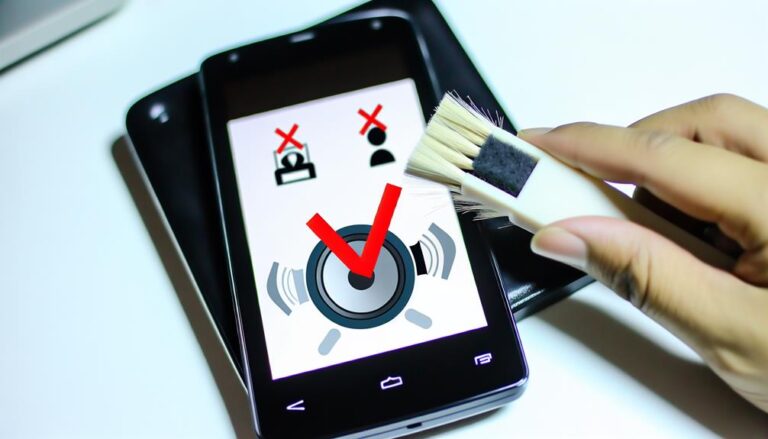
Turn off your iPhone before cleaning the charging port. Use a soft brush, compressed air, or a wooden toothpick to remove dirt and lint gently. Avoid using metal objects, as these can damage the Lightning port.
Regular cleaning helps maintain a solid connection between the cable and your device.
3. Restart Your iPhone
A simple restart can resolve software glitches that prevent proper charging. Press the power button and follow the on-screen instructions to restart your device.
Once your iPhone powers back on, reconnect the charger and check if the issue persists.
4. Update iOS to the Latest Version
Go to Settings > General > Software Update to check for updates. Installing the latest iOS version can fix bugs related to charging recognition, accessory compatibility, and battery management.
Keeping your iPhone updated also ensures better performance and security.
5. Check Battery Health in Settings
Navigate to Settings > Battery > Battery Health & Charging to see your battery’s maximum capacity. If the health percentage is low, your iPhone may struggle to charge efficiently.
Consider a professional battery replacement if the capacity is significantly degraded.
6. Avoid Using iPhone While Charging
Using your iPhone while charging, especially for intensive tasks like gaming or streaming, can slow down the charging process. The device generates heat, which may trigger temperature-based charging restrictions.
Letting your iPhone rest while charging ensures faster and safer power replenishment.
When to Seek Professional Help
If your iPhone continues to show charging issues after troubleshooting, it may indicate a hardware problem.
Signs That Indicate Battery Replacement or Hardware Repair is Needed
- Your iPhone only charges intermittently.
- The charging port is physically damaged.
- Battery health is significantly low, and the device shuts down unexpectedly.
- You see error messages like “Accessory not supported” even with Apple-certified chargers.
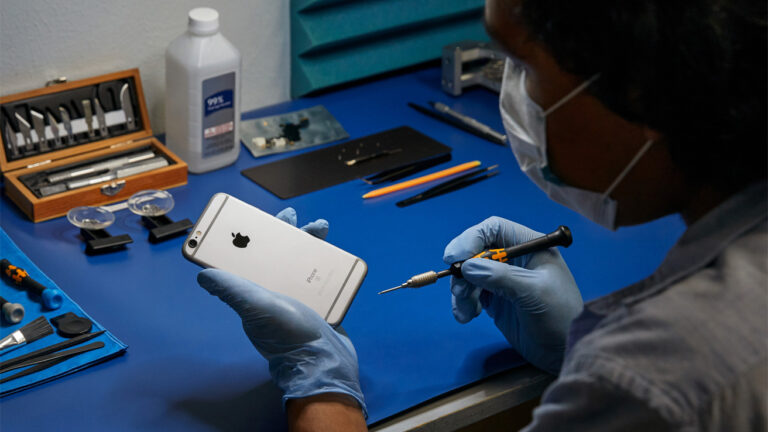
At Dr Mobile, we provide fast and reliable iPhone repair Dubai services. Our technicians specialize in iPhone battery replacement, charging port cleaning, and other hardware fixes while keeping your warranty intact when possible.
Professional repair ensures your iPhone operates safely, restores battery performance, and prevents further damage from DIY attempts.
Preventive Tips to Keep Your iPhone Charging Smoothly
Taking care of your iPhone can prevent frequent charging problems.
1. Use Certified Cables and Adapters
Always opt for Apple-certified cables and adapters to ensure safe and efficient charging. Third-party accessories may damage your battery or charging port over time.
2. Keep the Charging Port Clean
Regularly inspect and clean the Lightning port to remove dirt and debris. A clean port prevents loose connections and improves charging reliability.
3. Avoid Charging in Extreme Temperatures
Charge your iPhone at room temperature. Avoid leaving it in hot cars, direct sunlight, or near heaters while charging. Extreme temperatures can damage the battery permanently.
4. Regularly Update iOS
Install the latest iOS updates to maintain system stability and compatibility with chargers. Updates often include fixes for known charging bugs.
5. Consider Professional Battery Checkups
If your iPhone is more than two years old or shows early signs of battery wear, schedule a professional battery check. Timely replacement can restore charging efficiency and extend your iPhone’s lifespan.
Conclusion
iPhone not charging can disrupt your daily routine, but most issues are manageable with practical steps. Start by checking your cable, adapter, and charging port, then update iOS and monitor battery health. Avoid using your iPhone while charging and follow preventive care tips to minimize future problems.
When DIY troubleshooting doesn’t resolve the issue, it’s essential to seek professional help. Dr Mobile offers expert iPhone repair Dubai, including battery replacements and iPhone charging port cleaning, ensuring safe, reliable, and fast service.