iPhone Speaker Not Working? Diagnosing and Repairing the Problem Fast
iPhones are known for their premium design, seamless performance, and reliable hardware. However, like all electronic devices, they can encounter issues over time. One common problem iPhone users face is when the iPhone speaker is not working. Whether it’s during calls, music playback, notifications, or alarms, a malfunctioning speaker can disrupt daily activities and communication. Understanding the causes, troubleshooting methods, and repair options is crucial for anyone experiencing iPhone sound issues.
In this article, we will guide you through practical steps to diagnose, troubleshoot, and repair your iPhone speaker. If needed, professional help like Dr Mobile iPhone repair services can ensure your device is restored efficiently.
Common Causes of iPhone Speaker Problems
Identifying the cause of a malfunctioning iPhone speaker is the first step in fixing it. iPhone speaker issues can result from software problems, hardware damage, or external factors such as debris or water exposure. Below are the most common causes:
1. Software Glitches
Sometimes, the issue may not be physical. iPhone sound issues can occur due to software bugs or system glitches. These might include:
- iOS updates that were not installed correctly
- App conflicts affecting audio output
- Temporary system errors from prolonged usage
Software-related issues are often the easiest to fix with simple troubleshooting steps.
2. Hardware Damage
Physical damage is another major reason your iPhone speaker is not working. This can happen due to:
- Dropping the iPhone, causing internal speaker components to malfunction
- Exposure to high pressure, impacting delicate speaker membranes
- Manufacturing defects (rare but possible in certain iPhone models)
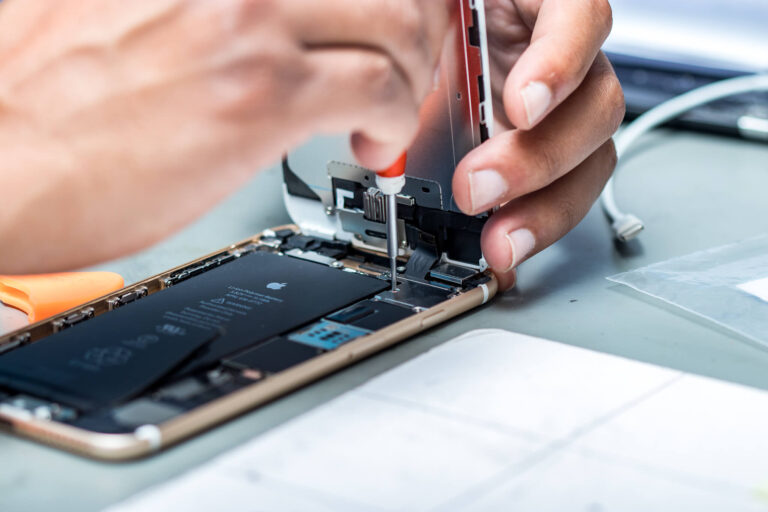
Hardware issues usually require a professional iPhone speaker repair.
3. Debris or Dust Blockage
iPhone speakers are small and can easily get blocked by dirt, dust, lint, or pocket debris. This can lead to muffled sound or complete speaker failure.
- Dust accumulation around the speaker grille
- Lint from pockets or bags
- Food or liquid residue
Regular cleaning and careful handling can prevent this type of problem.
4. Water Exposure
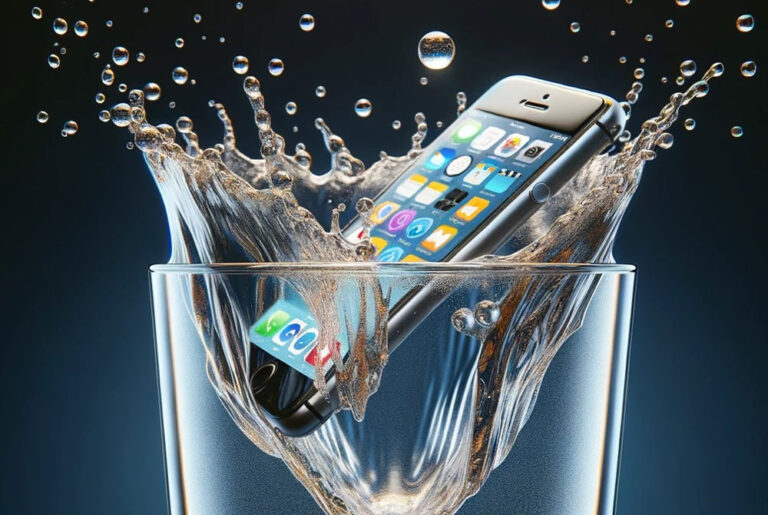
Even though newer iPhones have some water resistance, exposure to water or other liquids can damage speaker components. Signs of water-related speaker issues include:
- Distorted or crackling sound
- Intermittent speaker function
- Complete failure after exposure
Water damage often requires professional repair, as DIY fixes may worsen the issue.
Quick Troubleshooting Tips for iPhone Speaker Not Working
Before seeking professional help, there are several practical steps you can take to identify and sometimes fix minor iPhone sound issues.
1. Restart Your iPhone
- Press and hold the power button
- Slide to power off, wait 10 seconds
- Turn your iPhone back on
A simple restart can often resolve software glitches causing the speaker to stop working.
2. Check Volume and Sound Settings
- Make sure the ringer and volume are turned up
- Ensure Silent Mode is off (check the switch on the side of your iPhone)
- Go to Settings > Sounds & Haptics and test different alert sounds
Sometimes the issue is as simple as the iPhone being muted or set to a low volume.
3. Remove Cases or Accessories
Some protective cases or accessories can obstruct the speaker.
- Remove any cases or covers
- Test the speaker without external accessories
- Ensure no headphones are connected
4. Test with Headphones
- Connect headphones or AirPods to your iPhone
- Play audio to see if the sound works through them
If the sound works with headphones, the problem is likely with the iPhone’s internal speaker rather than software.
5. Clean the Speaker Grille
- Use a soft-bristled brush or compressed air
- Gently remove dust or debris from the speaker area
- Avoid inserting sharp objects into the speaker
6. Reset All Settings
If basic troubleshooting does not work, resetting your iPhone’s settings may help:
- Go to Settings > General > Reset > Reset All Settings
- This does not delete personal data but restores system settings to default
When to Seek Professional iPhone Speaker Repair
While some iPhone speaker problems can be resolved with simple steps, certain situations require expert intervention. Consider visiting a professional repair service like Dr Mobile iPhone repair if you notice:
- No sound after restarting and checking settings
- Distorted, crackling, or muffled audio
- Speaker works intermittently or inconsistently
- Evidence of water damage or internal hardware failure
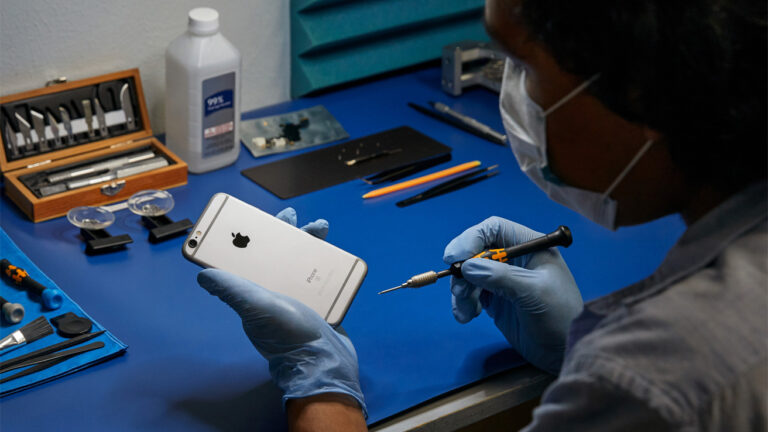
Professional technicians have the tools and experience to diagnose problems accurately and avoid further damage.
Repair Options for iPhone Speakers
Depending on the cause of your iPhone speaker not working, there are several repair options.
1. Software Fixes
- iOS Updates: Installing the latest software can resolve bugs
- App Reinstallation: Remove apps causing conflicts
- Factory Reset: As a last resort, restoring the iPhone to factory settings may fix persistent issues
Software-related fixes are non-invasive and cost-effective.
2. Cleaning the Speaker
- Carefully remove debris from the speaker grille
- Use professional ultrasonic cleaning tools if necessary
- Ensure no moisture enters the device during cleaning
Cleaning is often sufficient for minor sound issues caused by dirt or dust.
3. Speaker Replacement
- If the speaker is physically damaged, replacement may be necessary
- Dr Mobile iPhone repair can replace the internal speaker using high-quality parts
- This ensures restored sound quality and functionality
4. Liquid Damage Repair
- Professionals can diagnose corrosion or water damage inside the iPhone
- Specialized drying and cleaning procedures may restore speaker function
- In severe cases, replacement of the speaker or other components may be required
5. Testing After Repair
- After any repair, your iPhone should be thoroughly tested
- Play different types of audio (music, calls, notifications)
- Confirm sound clarity, volume levels, and speaker consistency
Professional services ensure repairs are done correctly, preventing recurring iPhone sound issues.
Preventing Future iPhone Speaker Problems
Maintaining your iPhone properly can reduce the chances of speaker malfunction:
- Avoid dropping your iPhone or exposing it to pressure
- Keep the speaker area clean from dust and debris
- Avoid prolonged exposure to moisture
- Update iOS regularly to prevent software glitches
- Remove obstructive cases that may interfere with sound output
Following these tips helps ensure your iPhone speaker continues to function optimally.
Conclusion
A malfunctioning speaker can be frustrating, affecting calls, media, and alerts. Common causes include software glitches, hardware damage, debris, and water exposure. While basic troubleshooting—like restarting your iPhone, checking settings, and cleaning the speaker—can solve minor issues, professional repair is often necessary for hardware-related problems.
If your iPhone speaker is not working despite trying these steps, visiting Dr Mobile iPhone repair is the safest and fastest solution. Expert technicians can diagnose the issue accurately, perform necessary repairs, and restore your device’s sound quality reliably. Don’t let sound problems disrupt your daily life—contact Dr Mobile for professional iPhone speaker repair today.