Water Damaged iPhone? Steps to Restore Function Before Repair
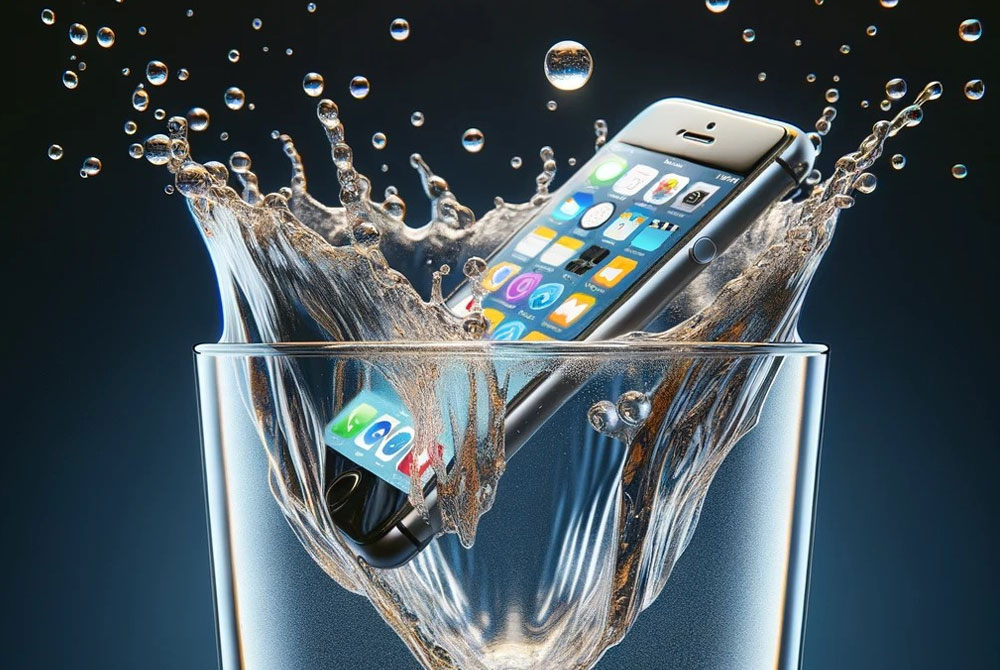
Water damage is one of the most common and frustrating issues iPhone users face. Even a few drops of water can interfere with internal components, leading to malfunctions, data loss, or complete device failure. While modern iPhones come with some water resistance, this protection is not foolproof. Immediate action is crucial to prevent further damage and maximize the chances of restoring your iPhone’s functionality.
In this guide, we will walk you through practical steps you can take after water exposure, common mistakes to avoid, and when it’s essential to seek professional help from a trusted service like Dr Mobile.
Understanding the Risks of Water Damage on iPhones
Water can harm an iPhone in several ways:
- Short-circuiting: Water can create electrical pathways that disrupt components.
- Corrosion: Over time, moisture can corrode internal circuits, causing permanent damage.
- Battery and screen issues: Water often affects the battery, leading to swelling or shutdowns, and may also cause screen flickering or unresponsiveness.
Even if your iPhone seems fine after getting wet, internal damage may develop gradually. Acting quickly is key to reducing long-term harm.
Safety First – Power Off Your iPhone
The first step after any water exposure is to turn off your iPhone immediately.
- Why: Water conducts electricity, and using the device while wet increases the risk of short-circuiting.
- How: Press and hold the power button and slide to power off. If the screen is unresponsive, do not force it on. Simply keep it off.
Important: Do not attempt to charge your iPhone while it’s wet. This can lead to permanent damage.
Remove External Accessories
Detach all accessories, including:
- Charging cables
- Headphones or AirPods
- Cases or covers
- SIM card tray
Tip: Remove the SIM card gently and dry it separately. The SIM tray area can trap water, so ensure it is completely dry before reinserting.
Dry Your iPhone Properly
Drying your iPhone is critical to prevent corrosion and restore functionality. Here’s how:
3.1 Gently Wipe the Exterior
Use a soft, lint-free cloth to remove visible moisture. Avoid using paper towels or tissues that can leave fibers behind.
3.2 Remove Excess Moisture from Ports
- Turn the iPhone upside down and gently shake to remove water from the lightning port and headphone jack.
- Avoid using compressed air, hair dryers, or heat guns as excessive heat can damage components.
3.3 Use Silica Gel Packs
Silica gel is more effective than rice for absorbing moisture:
- Place the iPhone in an airtight container.
- Surround it with silica gel packs.
- Leave it for at least 24–48 hours.
Avoid: Submerging your iPhone in rice. While popular, rice is less effective and may leave dust or starch inside the ports.
Check for Functional Damage
After drying your iPhone, check for signs of damage:
- Screen behavior: Flickering, unresponsiveness, or discoloration.
- Battery performance: Quick drains or failure to charge.
- Speakers and microphone: Distorted sound or muffled audio.
- Connectivity: Issues with Wi-Fi, Bluetooth, or cellular signals.
Some issues may appear later, so monitor your device over the next few days.
Attempt a Soft Reset
If your iPhone shows minor issues, a soft reset may help:
- Press the appropriate button combination based on your iPhone model.
- Wait for the device to restart.
- Check if basic functions like touch screen, sound, and charging work correctly.
Note: A soft reset does not fix severe internal water damage but can restore temporary functionality.
Back Up Your Data
If your iPhone powers on, immediately backup your data to prevent permanent loss. Options include:
- iCloud Backup: Go to Settings > [Your Name] > iCloud > iCloud Backup > Back Up Now.
- iTunes/Finder Backup: Connect your iPhone to a computer and create a local backup.
Data recovery is often the first step even before professional repair, as some repairs may require component replacement.
Common Mistakes to Avoid
When dealing with a water-damaged iPhone, avoid these pitfalls:
- Turning it on too soon – Increases the risk of short-circuiting.
- Using heat sources – Hair dryers, microwaves, or ovens can permanently damage your iPhone.
- Shaking aggressively – This can spread water to other components.
- Submerging in rice – Rice is ineffective and may leave debris.
- Ignoring professional repair – DIY steps can only do so much; internal damage may need expert attention.
When to Seek Professional Repair
If your iPhone shows any of the following signs after DIY efforts, it’s time to contact a professional:
- The iPhone doesn’t turn on at all
- Charging issues persist
- Screen flickering, discoloration, or unresponsiveness
- Water has reached the battery, causing swelling
- Microphone, speaker, or camera malfunctions
Professional repair technicians like Dr Mobile have the tools and expertise to:
- Disassemble the iPhone safely
- Clean and dry internal components
- Replace damaged parts if necessary
- Ensure data integrity during repairs
Preventive Measures for the Future
To reduce the risk of water damage in the future:
- Use waterproof cases during outdoor activities
- Avoid using iPhone near water sources like sinks or pools
- Keep your iPhone away from high humidity environments
- Consider AppleCare+ or insurance for accidental water damage
Even with preventive measures, accidents can happen. Quick action is the best defense.
Conclusion
Water damage can be alarming, but immediate and careful steps can save your iPhone. Power off the device, remove accessories, dry it thoroughly, and back up your data. Avoid common mistakes like applying heat or turning it on prematurely.
If your iPhone shows persistent issues, professional repair is essential. Dr Mobile specializes in iPhone repair, including water damage restoration. Our technicians ensure your device is safely restored, and your data is protected.