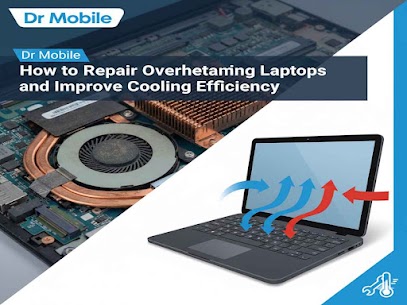
How to Repair Overheating Laptops and Improve Cooling Efficiency
Laptops are essential tools for work, study, and entertainment. However, prolonged usage can lead to overheating, causing performance issues, unexpected shutdowns, and potential hardware damage. Understanding the causes and solutions is critical to keeping your laptop safe and efficient. In this guide, we’ll explore practical ways to repair overheating laptops, improve laptop cooling, and maintain long-term performance.
Signs of an Overheating Laptop
Recognizing overheating early can prevent permanent damage. Common signs include:
- Sudden shutdowns: Your laptop may turn off without warning.
- Loud fan noise: Fans running at maximum speed constantly indicate overheating.
- Slow performance: Overheating can throttle CPU and GPU speed.
- High surface temperature: The laptop feels unusually hot to touch.
- Error messages or graphical glitches: May indicate hardware strain due to heat.
If you notice these signs, it’s important to act quickly to avoid further issues.
Common Causes of Laptop Overheating
Overheating is often the result of multiple factors. The most common causes include:
Dust Buildup and Blocked Vents
Dust can accumulate inside vents and fans, restricting airflow. This prevents heat from escaping and raises internal temperatures.
Old Thermal Paste
Thermal paste helps transfer heat from the CPU and GPU to the cooling system. Over time, it dries out, reducing its effectiveness and causing overheating.
Heavy Applications and Multitasking
Running resource-intensive programs like video editors, games, or multiple browser tabs simultaneously can strain the CPU and GPU, producing excess heat.
Hardware Issues
Faulty fans, failing cooling systems, or worn-out internal components can prevent proper heat dissipation, increasing the risk of overheating.
Poor Laptop Placement
Using laptops on soft surfaces like beds or couches can block vents, trapping heat inside.
DIY Cooling Solutions
Before seeking professional help, there are several safe steps you can try at home to improve laptop cooling.
1. Clean Vents and Fans
- Turn off and unplug the laptop.
- Use compressed air to remove dust from vents and fans.
- Avoid using a vacuum directly on internal components.
Regular cleaning can reduce overheating and extend hardware lifespan.
2. Use a Cooling Pad for Laptops
- Cooling pads provide additional airflow and help dissipate heat.
- Look for pads with multiple fans and adjustable height.
This is an affordable solution that improves laptop cooling without opening the device.
3. Adjust Power Settings and Reduce Background Apps
- Enable power-saving or balanced mode in your operating system.
- Close unnecessary background applications to reduce CPU load.
Reducing system strain can significantly lower internal temperatures.
4. Update BIOS and Drivers
- Outdated BIOS or drivers can cause the system to overwork.
- Visit the laptop manufacturer’s website for updates.
This ensures your laptop uses power efficiently and avoids overheating due to software conflicts.
Professional Repair Tips
Sometimes, DIY solutions aren’t enough. Professional repair can address deeper issues safely.
1. Thermal Paste Replacement
- Old or dried thermal paste reduces heat transfer.
- A technician can remove the old paste and apply a fresh layer.
This is a common step in overheating laptop repair and helps restore optimal cooling performance.
2. Checking Internal Components
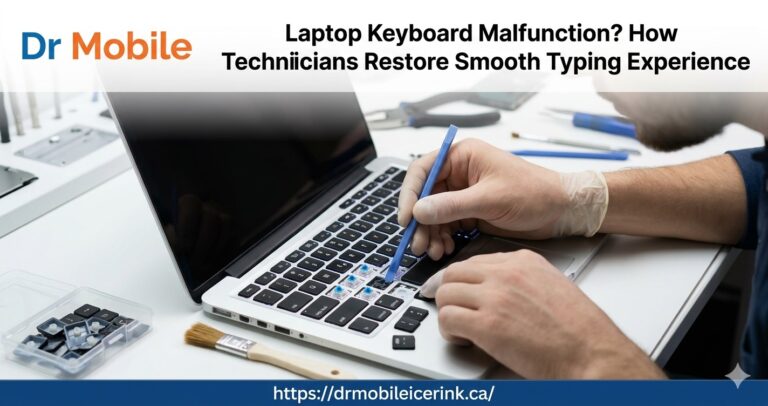
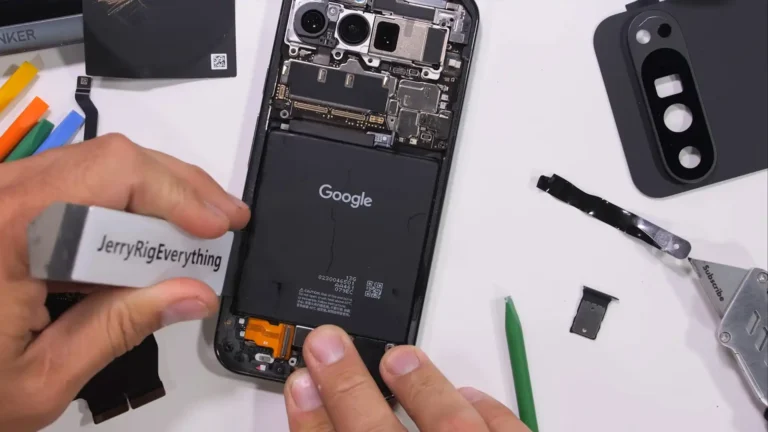
- Technicians can inspect the fan, heat pipes, and motherboard for damage.
- Replacing faulty components prevents recurring overheating issues.
3. Upgrading Cooling Systems
- High-performance laptops may benefit from advanced cooling systems.
- Some laptops allow fan upgrades or additional heat sinks.
For all these services, Dr Mobile’s Laptop Repair Service provides expert evaluation and safe repairs, ensuring your device stays cool and efficient.
Preventive Measures to Maintain Laptop Temperature
Preventing overheating is easier than repairing damage. Follow these laptop maintenance tips:
- Use laptops on hard, flat surfaces: Ensures vents are unobstructed.
- Regular cleaning: Remove dust from vents and fans every few months.
- Monitor temperatures: Use software tools to track CPU and GPU temperatures.
- Limit heavy multitasking: Avoid running multiple resource-intensive applications simultaneously.
- Control room temperature: Avoid using laptops in extremely hot environments.
Consistent preventive care reduces the risk of hardware failure and prolongs laptop lifespan.
When to Seek Professional Help
If your laptop continues to overheat despite DIY efforts, it’s time to consult professionals. Dr Mobile’s Laptop Repair Service specializes in diagnosing overheating issues, performing thermal paste replacement, repairing fan issues, and providing solutions tailored to your device.
Additionally, Dr Mobile also offers Cell Phone Repair services for smartphones that overheat due to battery or internal component issues. Professional service ensures safety and prevents accidental damage while improving device efficiency.
Conclusion
Laptop overheating can impact performance, shorten hardware lifespan, and even cause data loss. While DIY solutions like cleaning vents, using cooling pads, and adjusting power settings help, professional repair is often necessary for long-term efficiency.
With Dr Mobile’s Laptop Repair Service, you can address underlying issues like thermal paste replacement, fan repair, and hardware upgrades safely. Combining preventive care with professional service ensures your laptop remains cool, reliable, and ready for everyday use.
For overheating smartphones, Dr Mobile also provides expert Cell Phone Repair, keeping all your devices running safely and efficiently.