Laptop Battery Not Charging? Reasons and Expert Fixes Explained
A reliable laptop is essential for work, study, and daily life. But nothing disrupts productivity faster than a laptop battery not charging. A laptop that fails to charge can halt your tasks, cause frustration, and sometimes indicate deeper hardware or software issues. Understanding why your battery is not charging and learning practical troubleshooting steps is key to extending the life of your device.
In this article, we’ll explore common causes of laptop battery issues, provide expert tips for a battery not charging fix, and guide you on when to seek professional help. Dr Mobile is here to offer reliable service for complex laptop power problems, ensuring your device runs smoothly.
Common Reasons Why Your Laptop Battery Is Not Charging
Identifying the root cause of a laptop power problem is the first step in finding a solution. Several factors, from hardware defects to software glitches, can prevent your laptop from charging properly. Here’s an in-depth look at the most common reasons.
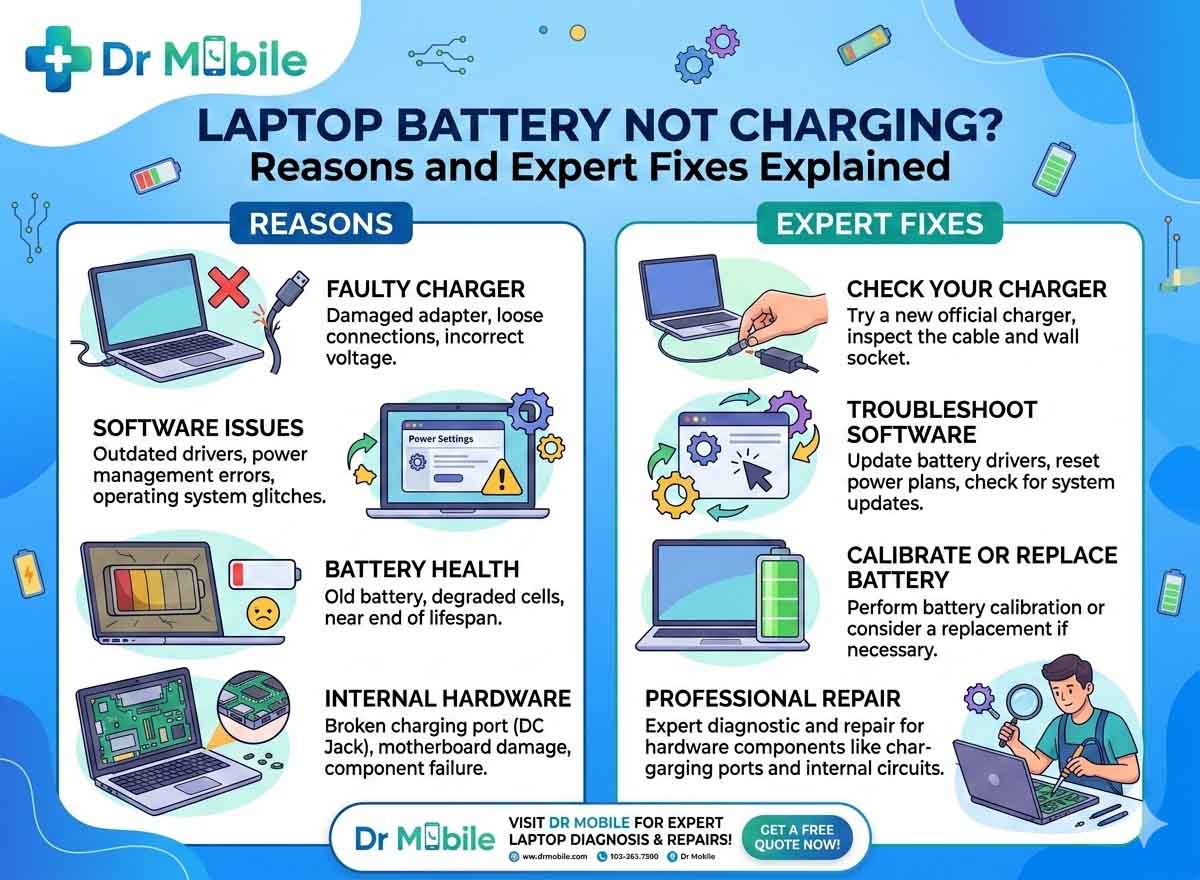
1. Faulty or Loose Power Adapter
Your laptop charger or adapter may be damaged or not connected properly. Symptoms include:
- The charging light flickers or does not turn on
- Battery percentage does not increase despite being plugged in
- Laptop powers off when disconnected
Fix Tips:
- Check that the power cable is securely connected to both the wall socket and laptop port
- Inspect the charger and cable for frays or damage
- Try a compatible replacement charger to see if charging resumes
Keywords included: laptop battery not charging, battery troubleshooting
2. Worn-Out Battery
Laptop batteries degrade over time. If your device is older than 2–3 years, a worn-out battery could be the reason. Signs of a failing battery include:
- Sudden drops in battery percentage
- Laptop shuts down even when the battery shows remaining charge
- Overheating during charging
Fix Tips:
- Check battery health through your operating system’s battery report tool
- Replace the battery if its capacity is significantly reduced
- Avoid using the laptop on a soft surface that blocks ventilation
Keywords included: laptop battery issues, battery not charging fix
3. Software or Driver Issues
Sometimes the problem is not hardware but software. Laptop operating systems manage battery charging through specific drivers and firmware. Common software-related causes include:
- Outdated battery drivers
- Incorrect power settings
- System glitches or BIOS issues
Fix Tips:
- Update battery drivers via Device Manager (Windows) or System Update (Mac)
- Reset power settings to default
- Update BIOS or firmware as per manufacturer instructions
- Restart the laptop after updates
Keywords included: laptop power problems, battery troubleshooting
4. Faulty Charging Port or Motherboard
A damaged charging port or motherboard component can prevent your laptop from charging even if the battery and adapter are fine. Indicators include:
- Charging stops intermittently
- Physical damage to the port
- Overheating near the charging area
Fix Tips:
- Inspect the charging port for debris or damage
- Avoid forcing the charger into the port
- For suspected motherboard issues, seek professional service from Dr Mobile
Keywords included: laptop battery not charging, laptop battery issues
5. Overheating or Environmental Factors
Laptop batteries may not charge if the device becomes too hot. Common causes include:
- Using the laptop on a bed or soft surface
- Dust accumulation in vents
- High ambient temperatures
Fix Tips:
- Ensure proper ventilation around the laptop
- Clean vents and fans using compressed air
- Avoid charging in extremely hot or humid environments
Keywords included: battery troubleshooting, battery not charging fix
6. Incorrect User Practices
Sometimes, laptop battery issues arise from simple mistakes:
- Using incompatible chargers
- Frequent full discharges
- Leaving the laptop plugged in constantly
Fix Tips:
- Use manufacturer-recommended chargers
- Keep battery charge between 20% and 80% for longevity
- Calibrate battery occasionally by fully charging and discharging
Keywords included: laptop power problems, battery not charging fix
Step-by-Step Expert Fixes for Laptop Battery Not Charging
Once you’ve identified the possible cause, follow these expert troubleshooting steps to fix your laptop battery.
Step 1: Check Hardware Connections
- Unplug the laptop from the wall
- Remove the battery if removable
- Inspect the battery, charging port, and adapter for damage
- Reconnect and plug in the charger
Tip: If the laptop charges without the battery installed, the battery itself may need replacement.
Keywords included: laptop battery not charging, battery troubleshooting
Step 2: Update Drivers and Software
- Open Device Manager (Windows)
- Locate “Batteries” → Right-click → Update Driver
- Check for BIOS or firmware updates on the manufacturer’s website
- Restart the laptop and check charging status
Keywords included: laptop power problems, battery not charging fix
Step 3: Reset Power Settings
- On Windows:
- Open Control Panel → Power Options
- Select “Restore default settings for this plan”
- On Mac:
- Reset System Management Controller (SMC) to fix battery charging issues
Keywords included: laptop battery issues, battery troubleshooting
Step 4: Perform a Battery Calibration
- Fully charge your laptop to 100%
- Disconnect the charger and use the laptop until it shuts down automatically
- Recharge to 100% without interruption
Benefit: Calibration helps the system accurately measure battery charge and improves charging behavior.
Keywords included: battery not charging fix, laptop battery not charging
Step 5: Inspect for Physical Damage
- Examine charging port for bent pins or debris
- Check the battery for swelling or leaks
- Avoid using a damaged battery, as it can cause further hardware issues
Keywords included: laptop battery issues, battery troubleshooting
Step 6: Seek Professional Help
If the above steps fail, professional service may be necessary. Dr Mobile specializes in:
- Complex battery replacements
- Motherboard or charging port repairs
- Advanced diagnostic testing for persistent laptop power problems
Keywords included: battery not charging fix, laptop battery not charging
Safety Precautions When Handling Laptop Battery Issues
Working with laptop batteries and charging components requires care:
- Avoid exposure to water or moisture
- Do not attempt to open non-removable batteries
- Unplug the laptop before cleaning or inspecting
- Use recommended chargers only
- Do not force a charger into a port
These steps prevent personal injury and further laptop battery issues.
When to Replace Your Laptop Battery
Sometimes, troubleshooting isn’t enough. Signs it’s time to replace the battery include:
- Battery drains quickly even at full charge
- Swollen or physically damaged battery
- Charging light flickers or fails to turn on consistently
- Laptop works only when plugged in
Replacing a worn-out battery is safer than risking potential damage to your laptop’s internal components. Dr Mobile provides safe and reliable battery replacement services for all major laptop brands.
Preventing Future Laptop Battery Issues
Good habits can extend battery life and prevent future laptop power problems:
- Avoid overcharging and deep discharges
- Keep your laptop and vents clean
- Use genuine chargers and adapters
- Update software and drivers regularly
- Avoid using laptops in extreme temperatures
By following these practices, you reduce the risk of laptop battery not charging issues.
Conclusion
A laptop battery not charging can disrupt your daily work or study, but most issues are fixable with proper troubleshooting. From checking hardware connections and updating software to performing battery calibration, these steps can resolve common laptop battery issues.
Always follow safety precautions and avoid risky DIY fixes. For persistent problems, professional help from Dr Mobile ensures accurate diagnosis and safe repairs. Maintaining your laptop battery properly can save time, reduce costs, and prolong the life of your device.
Remember, a well-maintained laptop battery keeps your productivity uninterrupted, so pay attention to signs of trouble and act promptly.