Phone Won’t Turn On? Expert Tips Before Replacing the Battery
When your phone won’t turn on, it can feel stressful—especially if you rely on it for work, studies, or daily communication. Many users immediately assume it’s a battery issue, but in reality, a smartphone not powering on can be caused by several different problems.
Before you rush to replace the battery, it’s important to go through a few expert troubleshooting steps. These simple checks can save you time, money, and unnecessary repairs.
At Dr Mobile, our mobile repair experts handle all types of device issues, from minor software glitches to complex hardware failures. Let’s explore what you should try first before deciding on a battery problem solution.
Why Your Phone Won’t Turn On
There are multiple reasons why a phone may suddenly stop working. Understanding the cause helps you choose the right fix.
1. Completely Drained Battery
Sometimes your phone battery is so low that it enters deep discharge mode. In this case, it may not respond immediately when plugged in.
2. Faulty Charging Cable or Adapter
A damaged charger or cable can stop your phone from receiving power, making it look completely dead.
3. Software Crash or System Freeze
A system error or failed update can cause your phone to freeze and refuse to start.
4. Charging Port Issues
Dust, lint, or damage in the charging port can block power flow.
5. Hardware Damage
Drops, water exposure, or internal board issues can also cause a smartphone not powering on.
Expert Troubleshooting Steps Before Replacing the Battery
Before assuming battery failure, follow these professional steps used by mobile repair experts.
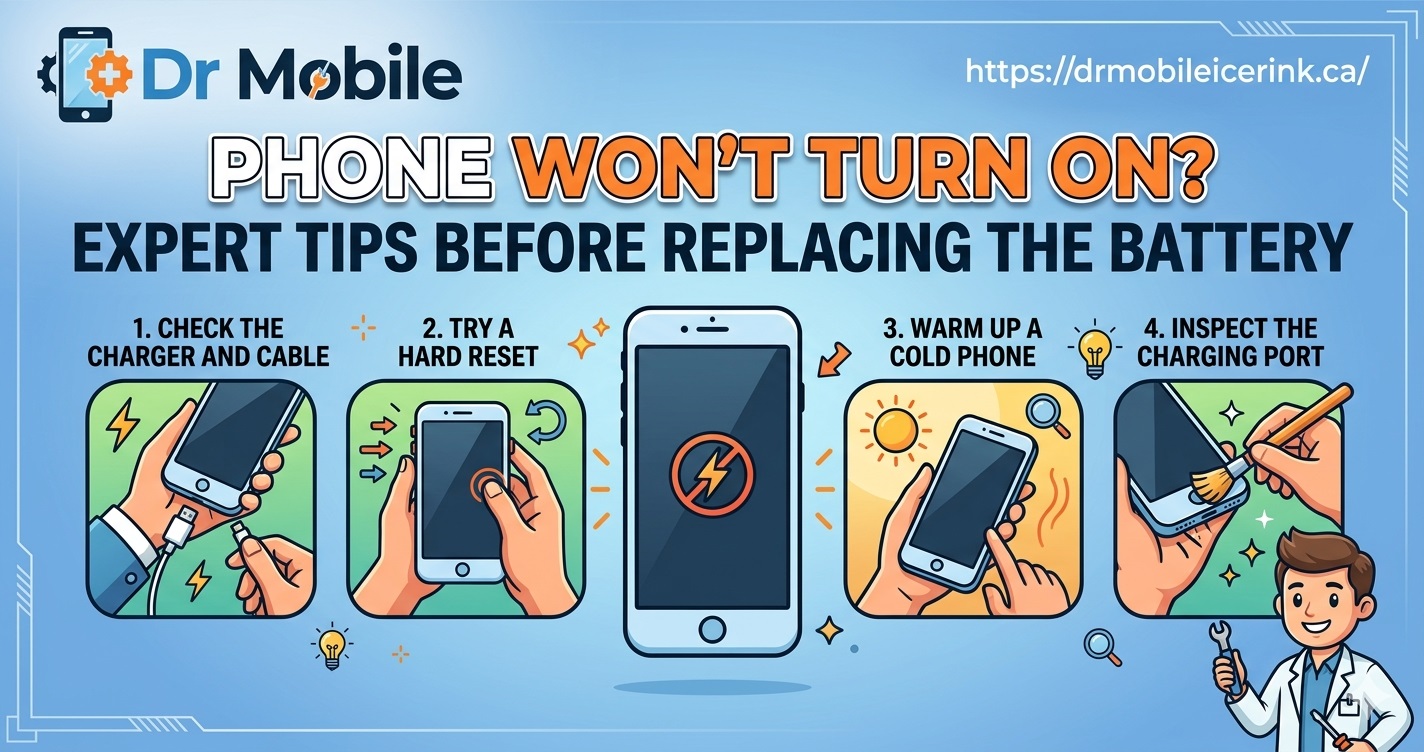
Step 1: Check the Charging Setup
Start with the basics:
- Use a different charging cable
- Try another adapter
- Plug into a different power source
If your phone still doesn’t respond, leave it charging for at least 20–30 minutes.
Step 2: Force Restart Your Phone
A frozen system may prevent your phone from turning on.
- For most Android phones: Hold Power + Volume Down for 10–15 seconds
- For iPhones: Use the correct force restart combination depending on model
This simple step often fixes minor software crashes.
Step 3: Inspect the Charging Port
Look closely inside the charging port:
- Dust or lint can block connection
- Use a soft brush or air blower carefully
- Avoid using metal objects
A blocked port is a very common reason behind a phone won’t turn on issue.
Step 4: Try a Different Charger or Power Source
Sometimes the issue is not the phone but the accessories. Always test with a known working charger.
Step 5: Look for Screen vs. Power Issue
Your phone might actually be ON but the screen is not working:
- Call your number from another phone
- Listen for vibration or sound
- Try flashlight test (for some devices)
If it reacts, the issue is display-related—not battery.
Step 6: Check for Overheating or Water Damage
If your phone recently:
- Got wet
- Overheated
- Was exposed to humidity
Then internal protection may prevent it from turning on.
In this case, professional phone repair service is required.
When It’s Really a Battery Problem
After all troubleshooting steps, if your phone still shows no signs of life, then the battery might truly be the issue.
Common signs include:
- Phone only works while charging
- Sudden shutdowns at high percentage
- Extremely slow charging
- No response even after long charging
At this stage, you may need a proper battery problem solution from experts.
When to Visit a Professional Repair Service
If your phone still won’t turn on after basic troubleshooting, it’s time to consult professionals.
You should visit a mobile repair expert when:
- The device shows no charging response
- There is suspected motherboard damage
- Water or physical damage occurred
- You are unsure about the real cause
Attempting advanced repairs without experience may worsen the problem.
How Dr Mobile Can Help You
At Dr Mobile, we provide complete diagnostic and repair solutions for all major devices.
Our Services Include:
- Phone Repair
- iPhone Repair
- Samsung Repair
- Google Repair
- Computer Repair
- Laptop Repair
- Desktop Repair
- SIM Card Activation
- Accessories
- Phone Case
- Screen Protectors
Our technicians carefully inspect your device to identify whether the issue is battery-related, software-related, or hardware failure.
We focus on fast diagnosis, honest repair advice, and cost-effective solutions.
Preventive Tips to Avoid Future Power Issues
To reduce the chance of facing a smartphone not powering on situation again, follow these tips:
- Avoid using low-quality chargers
- Keep charging ports clean
- Do not overcharge overnight regularly
- Install software updates carefully
- Protect your phone from drops and water
Good habits can significantly extend your phone’s lifespan.
Conclusion
A phone won’t turn on problem doesn’t always mean you need a new battery. In many cases, simple fixes like charging checks, force restart, or port cleaning can solve the issue.
However, if nothing works, professional diagnosis is the safest choice.
At Dr Mobile, our experts are always ready to provide reliable and quick repair solutions so your device gets back to working condition without unnecessary replacement costs.